How Translate Audio turns a recording into translated speech
Translate Audio recognizes the speech, translates it into one of 111 languages and writes a summary on its own. The voiceover starts when you tap play.
Updated November 2, 20264 min read
Use Translate Audio for a voice message in a language you don't speak, an interview, a lecture or any other recording. You read the original and the translation side by side, and you can listen to the translation in the speaker's own voice.
What you can upload
Translate Audio accepts audio files and video files. From a video it takes only the sound, and this happens on your device before the upload.
| Source | Limit | Where |
|---|---|---|
| File from your device (Choose) | up to 100 MB | web, iOS, Android |
| Recording in the app (Record audio) | no time limit, at least 1 second | web, iOS, Android |
| Link (Paste link): YouTube, TikTok, Instagram, X, Facebook, Pinterest, a direct file link or another site | up to 2 GB | web, iOS, Android |
| Voice message shared from WhatsApp, Telegram or another app | up to 100 MB | iOS and Android only |
Supported audio formats: MP3, M4A, AAC, WAV, FLAC, OGG, Opus, WebM, 3GP and MP4. How to send a voice message from a messenger is described in Send a voice message from WhatsApp or Telegram to VocaLingo.
How to translate a recording
Translation starts by itself as soon as the file is chosen. There is no Translate button.
On the Tools tab, open Audio Translation.
Tap Choose, Record audio or Paste link.
Wait while the app shows Recognizing… and then Translating…. The language of the recording is detected automatically.
On the Translation tab, check the language at the top. The first time it matches your app language, after that the app remembers your last choice. If you pick another language, the text is translated again.
Tap the play button in the player to hear the translation.
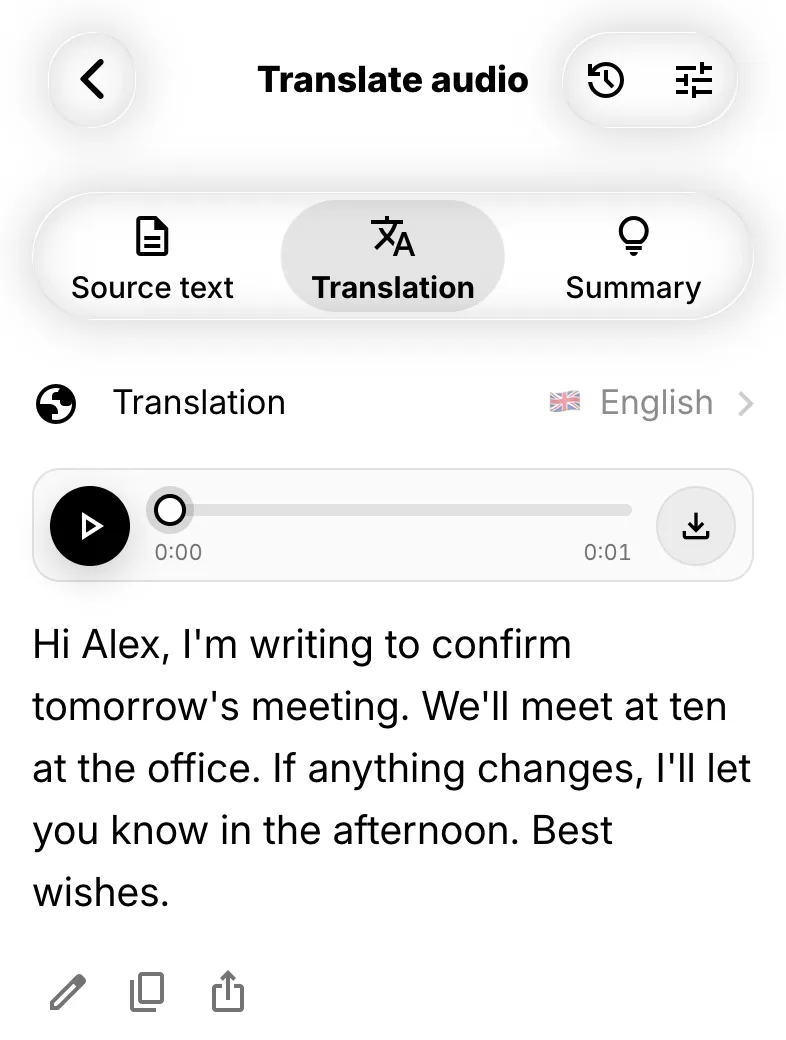
What you get and where to find it
The result is split into three tabs, and it is saved to History automatically.
Source text: the recognized speech. If a word was misheard, tap Edit, fix it, and the translation updates by itself.
Translation: the translated text with a player. You can edit, copy or share the text. The share button in the player sends the voiceover as an audio file; on the web it downloads the file.
Summary: Brief, Key points and Chapters with timestamps.
Under the translation, the What next? block offers Record a reply, Discuss in chat and, after a cloned voiceover, Save voice. Past results open from the History icon in the top right corner. Without Premium, the last 3 entries are kept. Translate Audio doesn't send a push notification: the result appears on the screen.
Which voice reads the translation
The voiceover is created only when you tap play, and the app picks the voice like this unless you chose one in Settings.
English, Russian, Chinese, German, French, Spanish, Italian, Japanese, Korean and Portuguese: the app clones the speaker's voice with Qwen 3 straight away. The recording must be at least 3 seconds long.
Other languages: the app asks Clone voice? and shows the price. Clone voice uses MiniMax or ElevenLabs Dubbing v2, whichever is cheaper for this recording. Use AI voice reads the translation with a standard voice. If you tick Don't ask again, the app remembers your answer.
To choose the voice yourself, tap the settings icon in the top right corner and open the Voiceover tab. Every option is described in Translate Audio settings. If the voice sounds robotic, too fast or not like the speaker, see Why the translated voice sounds robotic.
How much it costs
Recognition, translation and summary are charged automatically after you choose a file. The voiceover is charged only when you tap play.
| Step | Price |
|---|---|
| Recognition, ElevenLabs Scribe (default) | about 0.7 tokens per minute of audio |
| Translation and summary | fractions of a token |
| Standard voice, ElevenLabs | 10 tokens per 1,000 characters of translation |
| Cloned voice, Qwen 3 | about 20 tokens per 1,000 characters, at least 5 tokens |
| Cloned voice, MiniMax | 180 tokens for cloning plus 12 tokens per 1,000 characters |
| ElevenLabs Dubbing v2 | 4.4 tokens per second of the recording |
Prices for all tools are in Token pricing for each tool.
What Translate Audio can't do
You can't choose the language of the recording: it is always detected automatically.
There is no export to SRT, TXT or PDF. Copy or share the text instead.
The whole translation is read by one voice and doesn't follow the pauses of the original. Only ElevenLabs Dubbing v2 voices each speaker separately and keeps the original timing.
Live phone or messenger calls can't be translated, only recordings. See Can VocaLingo translate a phone or WhatsApp call.
On the web there is no sharing from messengers: save the voice message as a file and tap Choose.
Frequently asked questions
Can I translate my own voice into another language?
Yes. Tap Record audio, say what you need, pick the target language on the Translation tab and tap play. For the 10 languages listed above the translation is read in a clone of your voice right away; for other languages, answer Clone voice in the dialog.
Can I get a dubbed video instead of audio?
Translate Audio gives text and audio only. For a video with new speech, use Translate Video.
Contact support
Describe the problem and we will reply by email. Add the file name or job ID if you have one.